Retail management software: stores, stock and e-commerce in one system
QuickSoft brings barcode POS software, inventory management software and accounting together on the same product card. Cash register shifts, stock by warehouse, a B2C web store and dealer orders are managed from one screen; when a sale is posted, stock, the customer account and the books are updated together.
Fast barcode sales, multiple open baskets and cash register shifts
Stock by warehouse, variants and warehouse transfers
In Quick Sale, a cash or card (POS) payment is added with a single key and the change is calculated automatically.
Z and X reports
Every cash register shift is reported with its opening cash, expected cash, count and difference.
Stock − reserved
Products for an order being prepared are set aside; sellable stock is shown with the reserved quantity deducted.
Web + Market
Each product is published to your own web store and to the B2B Store independently of each other.
The jobs that waste the most time in a store
When the till, the warehouse and web orders are kept in separate programs, the same product shows up in three places with three different stock levels.
Problem: The till does not balance at the end of the day and nobody knows where the difference came from.
In QuickSoft: The cashier opens the shift with the opening cash and enters the counted amount at closing; the difference from the expected amount is written to the shift report.
Problem: The only way to find out what is left in which branch or warehouse is a phone call.
In QuickSoft: The Stock List shows how each product is spread across warehouses and which items have dropped to their alert limit; moves between branches are recorded with a numbered transfer voucher.
Problem: Web orders go ahead without knowing the store's stock.
In QuickSoft: The web store is published from the same product card; storefront orders land in the Order List under the 'Web' channel, and stock is deducted from the same warehouse on shipment.
Problem: Dealer orders arrive scattered across phone calls, messages and e-mails.
In QuickSoft: Your dealer sees your products in the B2B Store and orders with a basket; they pay by bank transfer, by card or on open account up to the credit limit you set.
What you need in store management software
Every feature below works in QuickSoft today; the modules available to you depend on your package.
Orders
Fast barcode sales
Products are added to the basket with a barcode scanner or by searching; the order is created in seconds with cash, a card (POS) payment or a charge to the customer's account. When you serve several customers at once, each basket stays in its own tab.
Payments
Cash register software: shifts and Z reports
Each cash register is linked to a cash account in your accounting. The Z report of a closed shift shows cash sales, the breakdown by payment type, the count and the difference; an X report can be taken while the shift is open.
Products
Multi-warehouse inventory management
Stock is tracked warehouse by warehouse, and the Stock List shows how each product is spread across them. Moves between warehouses are made with a DT-numbered transfer voucher; if the source warehouse does not have enough stock, the transfer is not saved.
Products
Variants and barcodes
Options such as colour and size are generated as combinations of up to three variation types. Each variant has its own SKU, barcode, stock and price; SKUs and barcodes can be generated in bulk.
Products
Price groups and campaign periods
Separate price lists can be opened for dealers, wholesale or campaigns; their validity is checked against the document date. In Quick Sale, if no group is selected, the customer's group applies, and if the customer has none, the default group.
B2C Store
B2C web store and e-commerce platform
'Publish to Web' on the product card puts the product in your storefront; prices are shown including VAT (KDV) and payment is taken with 3D Secure. Customers follow their order's stage from their account and are notified by e-mail and WhatsApp when the stage changes.
B2B Store
Dealer ordering system: B2B Store
You publish your products on B2B and invite your dealers by e-mail or WhatsApp. A dealer orders with a basket and pays by bank transfer, by card or on open account up to the credit limit set on their account card.
Reports
Stock value and profit margin
The Stock Status report shows the value of the goods you hold; the Profit Margin report shows revenue, cost and profit per product for the selected period.
Module screens
Screens of the modules used most in this industry.
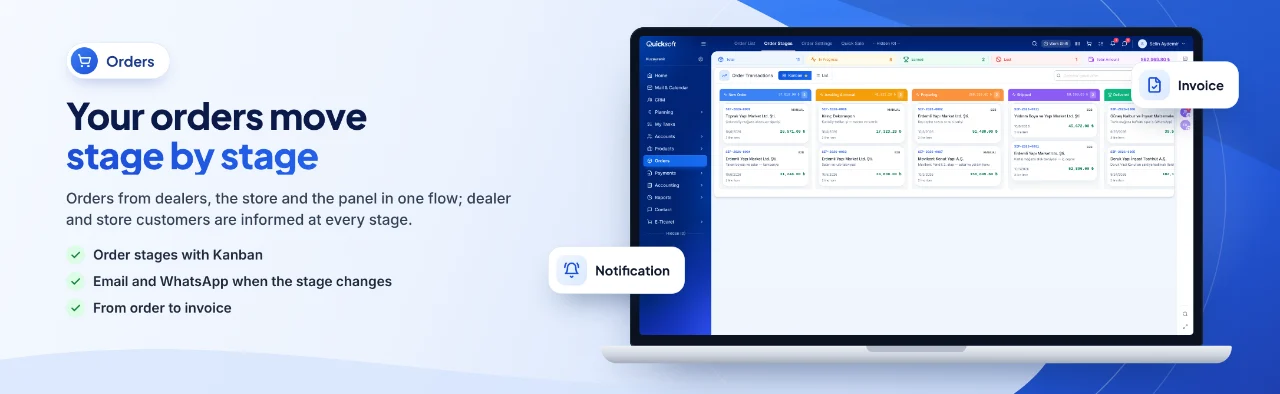
Your orders move stage by stage — Orders from dealers, the store and the panel in one flow; dealer and store customers are informed at every stage.
One flow from product card to collection
Sales in the store, online or through dealers draw on the same product card and the same stock.
1
Define the product once
Barcode, variants, category, price and warehouse are entered on the product card; large numbers of products are imported from Excel.
2
Enter stock with purchases
A stock entry or a purchase with products is posted to the warehouse you choose and saved together with the purchase voucher.
3
Sell at the till
The cashier opens the shift, scans the product's barcode and takes cash or card (POS) payment.
4
Collect web and dealer orders
Storefront and B2B Store orders land in the Order List with their channel; managers are notified.
5
Prepare and ship
Stock is reserved during preparation and deducted from the warehouse on shipment; the sales and cost vouchers are posted.
6
Invoice and close the day
An e-invoice (e-Fatura) or e-archive invoice (e-Arşiv) is sent from the Sales Document; at the end of the day the cash is counted and the Z report is taken.
How to get started
1
Import your data
Import your products and customer accounts with the Excel template, or bring in an export from your old program with AI column mapping.
2
Set up warehouses, cash registers and POS
Open your warehouses, link each cash register to a cash account, and enter your virtual POS and instalment commissions.
3
Connect e-invoicing and your web store
Add your e-invoice integrator; connect your B2C store to your own domain with DNS records.
4
Add your team
Add cashiers and warehouse staff as users and give them permissions through their departments.
Frequently asked questions
How long does setup take?
Your trial starts as soon as your account is verified, and you can use the system straight away. The total time depends on how many products you import and which integrations you connect; if the Setup and Training service is added to your package, the QuickSoft team plans the setup with you.
Can I move products, customer accounts and balances from my current program?
Products and customer accounts are imported with the Excel template, or with your own file using AI column mapping. Opening stock does not come with this import; it is entered on the product card or with a purchase document. A customer's balance brought forward is entered in the opening balance field on the account card.
Can I issue e-invoices (e-Fatura) and e-archive invoices (e-Arşiv)?
Yes. You connect your İşNet or Turkcell e-Şirket integrator and send an e-invoice or e-archive invoice from the Sales Document; e-invoices from your suppliers are received through the same connection.
How secure is my data?
Each user sees only the screens opened by their role and department permissions; the session asks for a new sign-in every 12 hours. Card details are processed on the payment provider's secure page and are not stored in the system. A deleted record waits in Deleted Items for 30 days.
Can it be used on mobile?
QuickSoft is cloud-based and runs in the browser; the mobile app works with the same account and the same rules.
Is training provided for my team?
Every screen has an (i) guide, and there is a help centre inside the system; you can write to the QuickSoft team from the support button in the corner. When the Setup and Training service is purchased, the training is planned by the QuickSoft team, or by your partner if you work with one.