Industry solutionFor construction and contracting companies
Construction ERP software: each project's cost and profit on one screen
As construction project management software, QuickSoft links the quote, material and subcontractor purchases, invoices and collections to the same project, and keeps site stock per warehouse. Project costs are not tracked in separate spreadsheets; they are calculated automatically from the accounting vouchers you post to the project.
A project's income, expense and profit are calculated not from a separate counter but from the accounting vouchers posted to the project.
20 suppliers
With a single request for quotation you ask up to 20 suppliers about the same items and compare their answers in one table.
Estimated profit
Items not yet invoiced are included in estimated profit as pending income and expense.
Stock per warehouse
You define your sites as warehouses and move material between them with a transfer record.
Why construction cost tracking gets difficult
When quotes, purchasing, the site and accounting are kept in different places, a project's real position only becomes clear after the work is done.
Problem: Whether a project made a profit only becomes clear once the work is finished.
In QuickSoft: The Project Card shows the budget, actual income and expense, profit and remaining budget at any moment.
Problem: Material prices are collected by phone and compared by hand.
In QuickSoft: A request for quotation sends each supplier its own link; prices arrive in one table with the cheapest marked.
Problem: Nobody knows how much material is at which site.
In QuickSoft: Stock is kept per warehouse; transfers are recorded with their source and destination warehouses.
Problem: Subcontractor and supplier invoices are not allocated to projects.
In QuickSoft: When an incoming e-invoice (e-Fatura) is converted into an expense voucher, its project is selected; the expense is deducted from that project's profit.
Key features for construction project management
There is no separate module just for construction; QuickSoft's planning, purchasing, stock and accounting screens work linked to the project.
Planning
Income, expense and profit per project
Each job is opened as a sales project. The Project Card shows budget, income, expense, profit and remaining budget excluding VAT (KDV); items not yet invoiced are included in estimated profit. Only users with permission to view project finance see the amounts.
Planning
Cost estimates and quote versions
When the customer asks for changes, you open a new version without breaking the quote; the lines are copied along with their group headings. Only one version in the chain is invoiced and turned into a project.
Planning
Supplier quote comparison
You write the material lines once and send them to several suppliers. Incoming prices are compared line by line in one table and the cheapest cell is marked; you can also enter a price lowered through negotiation.
Planning
Purchase file
Material and subcontractor purchases made for a project are collected in a purchase project and linked to the main project. Expense vouchers posted to the file are added to the main project's expense and profit.
Products
Site warehouses
Construction material tracking is done per warehouse: you define each site as a warehouse and transfer material between warehouses. If the source warehouse does not have enough stock, the transfer is not saved; if needed, a transfer can be cancelled and the stock returned.
Planning
Gantt chart
The project's work items appear day by day on a timeline: start, end, assignee, status and progress. Today's line and weekends are marked.
Progress payment and handover documents
You create your own document category for handover reports, progress payment certificates (hakediş) or work orders and upload its template in Word format. The template appears in the 'Create Document' menu on the Project Card, and each document takes the category's next number.
Accounting
Project expenses from incoming invoices
When an incoming e-invoice is converted into an itemised expense voucher, its project is selected; the invoice PDF is attached to the voucher and its due date goes into the payment plan. Material posted directly to expense enters the project's profit at once, while material taken into stock becomes an expense when it is sold.
Module screens
Screens of the modules used most in this industry.
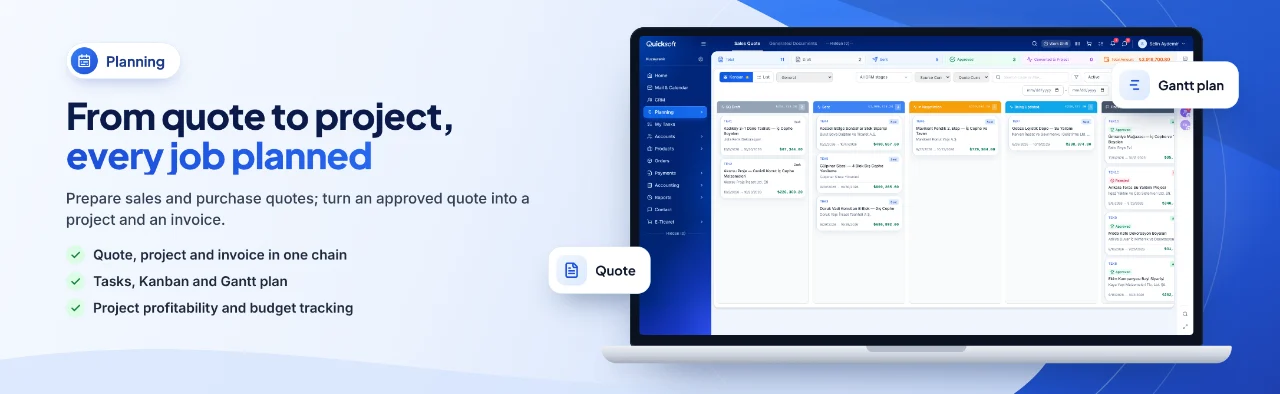
From quote to project, every job planned — Prepare sales and purchase quotes; turn an approved quote into a project and an invoice.
A construction project from quote to collection
From your construction company CRM to accounting, the quote, purchasing, site and invoice all move forward on the records of the same project.
1
Request and quote
The customer's request is tracked in CRM; the quote with grouped lines is sent as a PDF with an approval link.
2
The project is opened
The approved quote turns into a sales project, and each line becomes a request on the project.
3
Purchasing
Material lines are sent to suppliers with a request for quotation; purchase projects for the winning suppliers are opened and linked to the main project.
4
Site and stock
Material enters the selected warehouse with the purchase invoice and is transferred between sites when needed.
5
Invoicing
Completed lines are invoiced with a Sales Document and sent as an e-invoice or e-archive invoice (e-Arşiv); due dates go into the payment plan.
6
Profitability
The Project Card and the Project Profitability report show the budget, actual profit and estimated profit.
Getting started in your company
1
Open your account
Your trial starts once your account is verified, and you can use the system right away.
2
Import your master data
Import your customer, supplier and material lists with the Excel template or with your own file.
3
Set up warehouses and stages
Open your sites as warehouses and name the project stages to match your own workflow.
4
Connect your accounts
Connect your e-invoice integrator, mailbox and virtual POS from Settings.
Frequently asked questions
How long does it take to switch to construction ERP software?
You can start using it as soon as your account is verified. How long it takes to import account and material lists, set up warehouses and connect the integrator depends on how ready your data is; the Excel import is done in one go with a preview.
Who can see project costs?
Budget, income, expense and profit are visible only to users with the 'View Project Finance' permission and to administrators. Other users work with the screens opened up by their roles and department permissions; for security the session closes every 12 hours.
Can the site team use it on mobile?
QuickSoft runs in the browser; the mobile app is opened with the same user, and session rules are the same on mobile. We can look together in a demo at which tasks will be done from the field.
Can we transfer data from our current software?
You import account, contact and material lists with Excel; duplicate rows are skipped and existing records are left unchanged. Materials are created without stock and stock is entered with a purchase document; the account balance carried forward goes into the card's opening field.
Can we issue e-invoices with this construction accounting software?
You issue e-invoices and e-archive invoices with your İşNet or Turkcell e-Şirket integrator. Incoming e-invoices are pulled from the integrator, converted into expense vouchers and linked to projects.
Does our team need training?
The blue (i) icon on each screen opens a short guide to that screen; the help center explains every task step by step. The 'Purchasing workflow' and 'Tracking project profitability' articles in the help center show how the screens connect to each other.
Let us look together, on the real screens and with an example from your own projects, at how quotes, purchasing, site stock and profitability move forward in a single flow.