CRM for lawyers: clients, case files and collections in one place
As law firm software, QuickSoft brings your firm's daily work together in one system, from prospective clients to fee agreements and from case work to collections. Case files are tracked with Projects and Task Plans, while meetings and hearings are followed on a shared calendar.
Correspondence, documents and account movements on the client card
A task list, documents and internal notes for each case file
Fee agreement template and collection in instalments
e-invoice (e-Fatura) and e-archive invoice (e-Arşiv)
The client's notes, WhatsApp and email correspondence, case files and account movements sit on the same card.
5 access levels
You share your calendar at the Busy, View, Add, Edit or Manage level.
Read-only link
You share the period's documents and VAT (KDV) summary with your accountant through a time-limited link.
Role-based permissions
Each user sees only the screens opened up by their role and department permissions.
Where law firms lose time
Without client management software for lawyers, information stays scattered, and a case file's latest status, an unpaid fee or an upcoming meeting is easily missed.
Problem: Client information is scattered across email, phone and folders.
In QuickSoft: The client card keeps correspondence, notes, documents and account movements together.
Problem: It is unclear who will do what on which case file.
In QuickSoft: Each task's assignee, viewers and status are kept separately; a task plan is visible only to the people involved.
Problem: Meetings and deadlines are kept in people's heads.
In QuickSoft: An activity with a deadline appears on the calendar, and the person responsible receives a notification and a reminder.
Problem: You cannot tell which fee instalments have been paid.
In QuickSoft: The payment plan keeps each instalment with its due date; the amount paid is calculated from actual collection vouchers.
What QuickSoft offers as law firm software
As legal practice management software, QuickSoft does not offer a separate case module; its CRM, project, task, calendar and accounting screens are used to fit your firm's work.
CRM
Prospective clients
Someone contacting you for the first time is recorded as a lead and moves through the meeting stages. When you type a phone number, email address or tax number, the form warns you before saving if a record with the same details already exists.
Accounts
Client card
The card shows notes, calls, WhatsApp and email history, uploaded documents and account movements together. The 'Projects' tab lists all of the client's case files.
Planning
Case file card
Each case file is opened as a project. Powers of attorney, petitions and correspondence are kept in the 'Documents / Notes' tab together with internal notes. A client you invite to the portal follows the work lines and their status, but does not see internal notes or documents.
My Tasks
In-house tasks
Work such as hearing preparation or document follow-up is entered in a task plan; each task has its own assignee, viewers and status. The timer on the row records the time spent.
Mail & Calendar
Shared calendar
Hearings, client meetings and other meetings are kept on the calendar. An event marked private appears to others only as 'Busy'; this rule applies to administrators too.
Fee agreement template
You upload your agreement as a Word template and generate a numbered agreement document from a quote. Once created, the document is frozen and kept in 'Generated Documents'.
Payments
Card payment link
If your virtual POS is connected, you send the client a link by email or WhatsApp to pay by card. Once the payment is approved, the collection voucher is issued automatically.
Module screens
Screens of the modules used most in this industry.
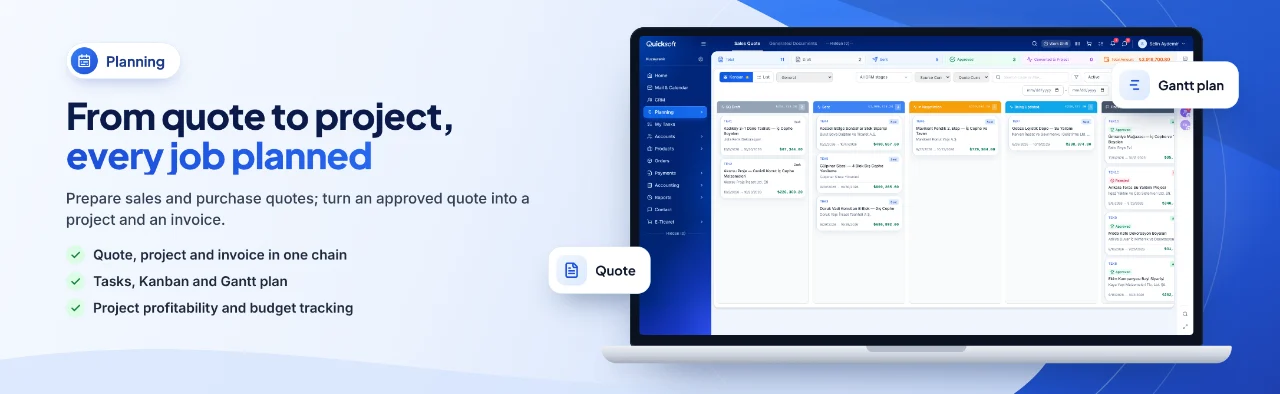
From quote to project, every job planned — Prepare sales and purchase quotes; turn an approved quote into a project and an invoice.
Client tracking from the first meeting to collection
A case file moves through your firm on the same records; information entered at one step carries over to the next.
1
First contact
The person who reaches out is opened as a lead; WhatsApp and Instagram conversations are handled from the Communication screen.
2
Meeting appointment
The prospect picks a suitable time on your booking page and sends a request; once you approve it, the meeting appears on your calendar.
3
Fee quote and agreement
The quote is sent as a PDF with an approval link; an agreement document is generated from the approved quote.
4
The case file is opened
The approved quote turns into a project, and its lines become the case file's work lines.
5
Tasks and deadlines
Tasks are assigned to people, and activities with deadlines appear on the calendar with reminders.
6
Invoice and collection
The invoice is issued; instalments are tracked in the payment plan and payments in the client's account.
Getting started in your firm
1
Open your account
Your trial starts once your account is verified, and you can use the system right away.
2
Move your data
Import your client and contact lists with the Excel template, or with your own file using AI mapping.
3
Adapt it to your firm
Fields such as case number and court are added to the case file form; this is done by the QuickSoft team or, if authorised, by your administrator.
4
Connect your accounts
Connect your mailbox, WhatsApp line and e-invoice integrator from Settings.
Frequently asked questions
How long does it take to switch to law firm software?
You can start using it as soon as your account is verified. Client and contact lists are imported from Excel in one go, with a preview; how long the import and integrations take depends on how ready your lists and account details are.
Is client information secure?
Each user sees the screens opened up by their role and department permissions. Task plans are visible only to the people involved, a calendar entry marked private appears to others as 'Busy', and for security the session closes every 12 hours.
Can I use it on mobile at the courthouse or on the road?
QuickSoft runs in the browser, and you sign in to the mobile app with the same user. Session and account verification rules are the same on mobile; we can look together in a demo at which tasks you will handle on the go.
Can we transfer data from our current software?
You import client and contact lists with Excel; rows already registered with the same tax number, email or phone are skipped. The balance carried forward goes into the opening field of the account card. If you use Bitrix24, CRM Data Transfer moves the records in bulk.
Can we issue e-invoices and e-archive invoices?
You issue e-invoices and e-archive invoices by connecting your İşNet or Turkcell e-Şirket integrator; the invoice is prepared from a sales document or a quote.
Does our team need training?
The blue (i) icon on each screen opens a short guide to that screen; the help center explains every task step by step and takes you to the relevant screen. The end-to-end workflows in the Getting started section show how the screens connect to each other.
Let us look together, on the real screens and with an example from your own firm, at how clients, case files, calendar and collections work together in QuickSoft as a law firm CRM.