Private security company software: clients, contracts and tasks in one system
QuickSoft brings a CRM for security companies, service quotes and contracts, task assignment for staff, client requests and collection of the monthly service fee together in the same record. Messages between head office and the team stay in the same system too.
A contract is numbered from the quote with its own prefix; the generated document is frozen and stored with the quote.
Resource calendar
Shared resources such as vehicles and meeting rooms cannot be booked twice for the same time slot.
90+ days
The account ageing report spreads clients' open balances across 0-30, 30-60, 60-90 and 90+ day columns.
Tracking page
Clients follow the stage of their request from the link they receive, without signing in.
Where tracking gets hard in security firms
When contracts sit in folders, tasks on the phone and collections in Excel, there is no single place to see which client receives which service and which fee is overdue.
Problem: Quote and contract versions are scattered across e-mails.
In QuickSoft: The quote is prepared in the system and turned into a numbered contract with your Word template; the generated document is frozen and kept in the quote's Generated Documents tab.
Problem: There is no way to check whether work given to staff has been done.
In QuickSoft: Tasks are assigned to a person with a deadline and their status is updated on the row; the task board shows overdue work and each person's workload.
Problem: Client requests and complaints come in by phone and are forgotten.
In QuickSoft: A request for extra staff, a change of post or a complaint is opened in Support Tickets with a number, priority and owner; if customer notifications are on, the client is informed when the stage changes.
Problem: Overdue monthly service fees are noticed too late.
In QuickSoft: With a recurring entry, each month's expected collection is added to the payment plan; an item past its due date becomes Overdue, and the ageing report shows how old the debt is.
What you use in security company management software
QuickSoft has no separate module made specifically for security; the general modules below are used to fit the work of a security company.
CRM
Corporate leads and site surveys
Residential complex managements, factories and workplaces are tracked as leads. A site survey or meeting is planned as an activity; the owner receives a reminder, and an activity with a deadline appears in the calendar.
Security service contract and quote
Your contract document is uploaded as a Word template and its number prefix is set. A numbered contract is created with the template you choose from the 'Create Document' menu in the quote window.
Planning
A service project for each client
A sales project is opened for a client whose contract has been signed; monthly service fees and extra work are added as requests. Each request's invoice and the collection linked to it are visible on the request row.
My Tasks
Employee task tracking software
Jobs such as inspections, training or equipment maintenance are assigned to people in the task plan; each task has an assignee, the people who can see it and a deadline. The assignee receives a bell and phone notification, and the task can be added to their calendar.
Support
Client requests and complaints
A ticket is opened with a channel, priority (Low, Normal, High, Urgent), category and owner; if no owner is set, the channel's assignment rule applies. The requester is linked to a customer account, a contact or a lead.
Mail & Calendar
Shared calendars and vehicle booking
Calendars are shared with a person or department at access levels from Busy to Manage. A resource calendar is opened for vehicles and meeting rooms; a second booking for the same time is rejected.
Communication
Messaging and approvals between head office and the team
The team messages one to one or in group chats and sends photos and documents. With 'Request approval', a decision stays on the card along with who made it and when; nobody who is not a participant can see the conversation.
Payments
Monthly service fees: recurring payment tracking
Each client's monthly fee is defined once with its amount, period and day of the month; the system opens the expected future collections itself and extends the horizon every night. A project and tag can be assigned to the entry.
Module screens
Screens of the modules used most in this industry.
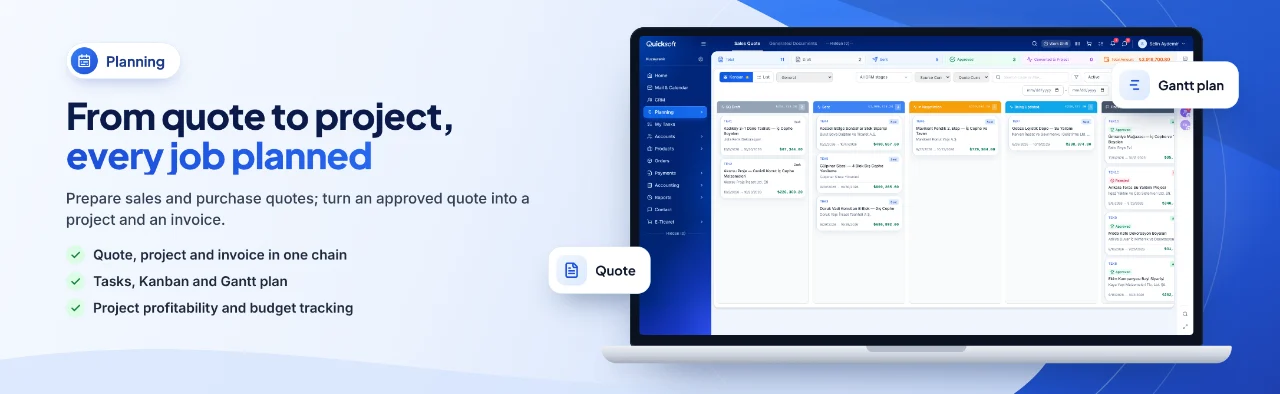
From quote to project, every job planned — Prepare sales and purchase quotes; turn an approved quote into a project and an invoice.
From lead to monthly collection
Security company client management starts with the lead, runs through tasks in the field and continues with monthly collections.
1
Lead and site survey
A lead is opened, and the site survey visit lands in the owner's calendar as an activity.
2
Quote and approval
A quote is prepared with the service items; the client accepts it from the approval link.
3
Contract
A numbered contract is generated from the approved quote with your Word template and shared by e-mail or WhatsApp.
4
Service project and tasks
The quote becomes a sales project; inspection and training jobs are assigned to the team in the task plan.
5
Requests and complaints
The client's requests are opened as support tickets; a stage change can be sent to the client by WhatsApp or e-mail.
6
Invoicing and collection
Requests are invoiced and an e-invoice (e-Fatura) is sent; the collection plan and ageing report show overdue fees.
How to get started
1
Import your client list
Import your customer accounts and contacts with the Excel template, or with your own file using AI column mapping.
2
Add your team
Add users, divide them into departments and give permissions to each department.
3
Prepare templates and fields
Upload your quote and contract templates as Word files; fields such as the number of posts or special instructions are added to the account card by the QuickSoft team, or by your administrator if field management is turned on.
4
Connect your channels
Connect your mailbox, WhatsApp line and e-invoice integrator from Integrations.
Frequently asked questions
How long does setup take?
Your trial starts as soon as your account is verified, and you can use the system straight away. The total time depends on the data you import and the channels you connect; if the Setup and Training service is added to your package, the QuickSoft team plans the setup with you.
Can we move our client and contract details from our old program?
Customer accounts and contacts are imported with the Excel template, or with your own file using AI column mapping; faulty rows are corrected in the preview. The balance brought forward is entered in the opening balance field on the account card.
Can we issue e-invoices (e-Fatura) and e-archive invoices (e-Arşiv)?
Yes. You connect your İşNet or Turkcell e-Şirket integrator and send an e-invoice or e-archive invoice from the Sales Document; invoices for the requests in a project are issued from the same window.
How secure are client details and internal messages?
Users see only the screens their role and department permissions open. Internal chats are visible only to their participants; even the Company Administrator cannot see them. The session asks for a new sign-in every 12 hours, and a deleted record waits in Deleted Items for 30 days.
Can the team in the field use it on mobile?
QuickSoft is cloud-based and runs in the browser; the mobile app works with the same account and the same rules.
Is training provided for our team?
Every screen has an (i) guide, and there is a help centre inside the system; you can write to the QuickSoft team from the support button in the corner. When the Setup and Training service is purchased, the training is planned by the QuickSoft team, or by your partner if you work with one.